PangeaNet — Starter Guide
| Version: 0.1.6 Alpha | Last Updated: October 8, 2026 |
Welcome to PangeaNet! This guide walks you through almost every feature available right now, from creating your account to sharing pages and participating in communities.
Table of Contents
- Getting Started — Registration & Login
- The Main Window
- Pages — Your Personal Documents
- Communities — Groups & Collaboration
- Governance — Proposals & Voting
- Peers — Your Network
- Following & Favorites
- Sharing Pages
- User Settings
- Updates
- Tips & Troubleshooting
1. Getting Started — Registration & Login
First Launch
When you open PangeaNet for the first time, you’ll be greeted by the Welcome screen and then taken to the Login dialog.
If you don’t have an account yet, click Create Account to create one.
Creating an Account
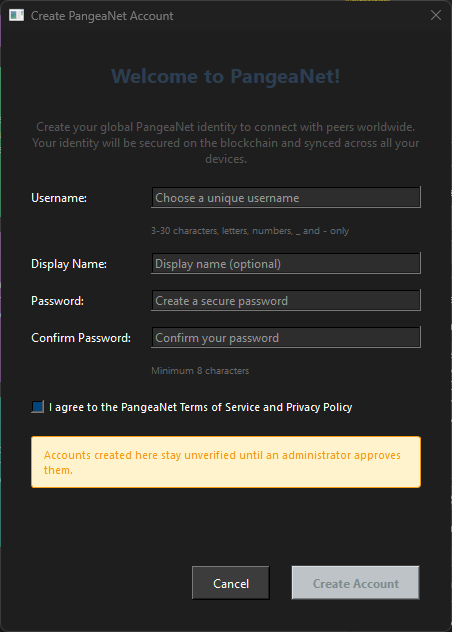
- Enter a username — this is your permanent identifier on the network.
- Enter a display name — the friendly name others will see.
- Create a password — this protects your account on this device.
- Click Create Account.
PangeaNet generates a cryptographic identity for you behind the scenes. Your account is saved locally and recorded on the network’s blockchain so it’s recognized everywhere you log in.
Tip: Choose a username you’re happy with — it becomes part of your identity on the network and is harder to change later.
Logging In
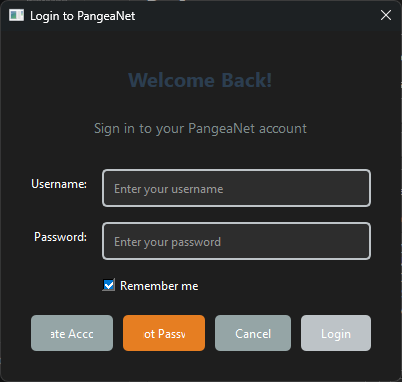
Enter your username and password, then click Login. If you’ve logged in before, PangeaNet will offer auto-login so you jump straight to the main window.
Logging Out
Click the Logout button at any time from the main window header. This ends your session and disconnects from the network. Your data stays on the device and will be ready when you log back in.
2. The Main Window
After logging in you’ll see the main tile window — a row of large buttons (tiles) that each open a feature area:
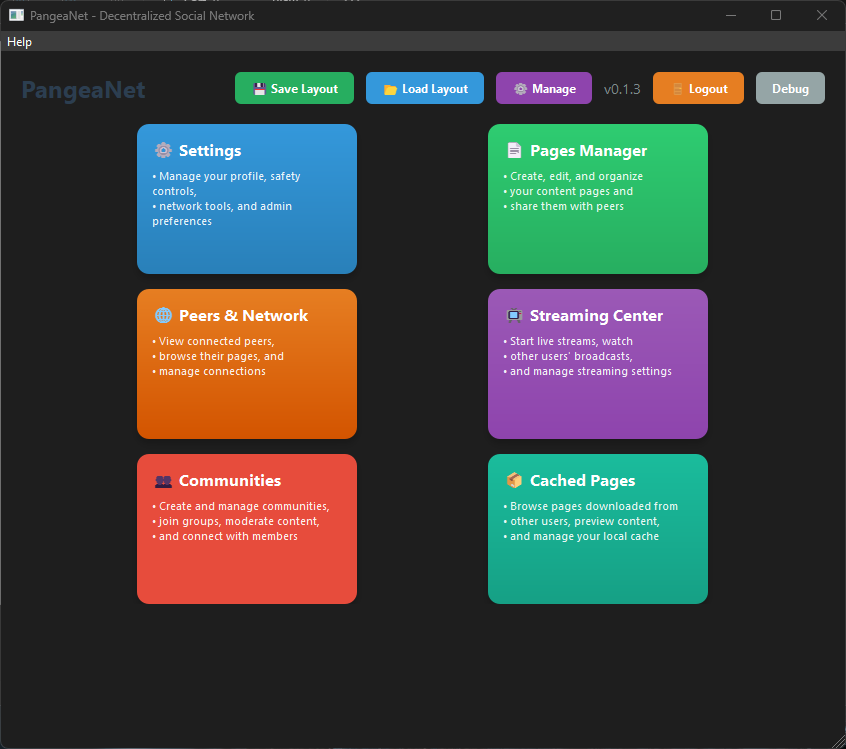
| Tile | What It Opens |
|---|---|
| Pages Manager | Your personal pages |
| Communities | Groups and shared spaces |
| Peers | People connected to you on the network |
| Streaming | Live streaming (basic — improvements coming) |
| Settings | Your account and device preferences |
| Cached Pages | The Pages from users that you are re-hosting |
At the top of the window you’ll also find:
- Logout — logs you out of the application and brings up the login screen
- Debug toggle — reveals a diagnostic log panel for troubleshooting
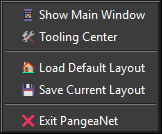
The application also lives in your system tray (bottom-right taskbar area on Windows). You can minimize to tray and restore from there. Right-clicking the tray icon gives quick shortcuts including workspace layout management.
3. Pages — Your Personal Documents
Pages are PangeaNet’s rich-text documents. Think of them like personal blog posts, notes, or wiki articles that you can share directly with others on the network.
Opening the Pages Window
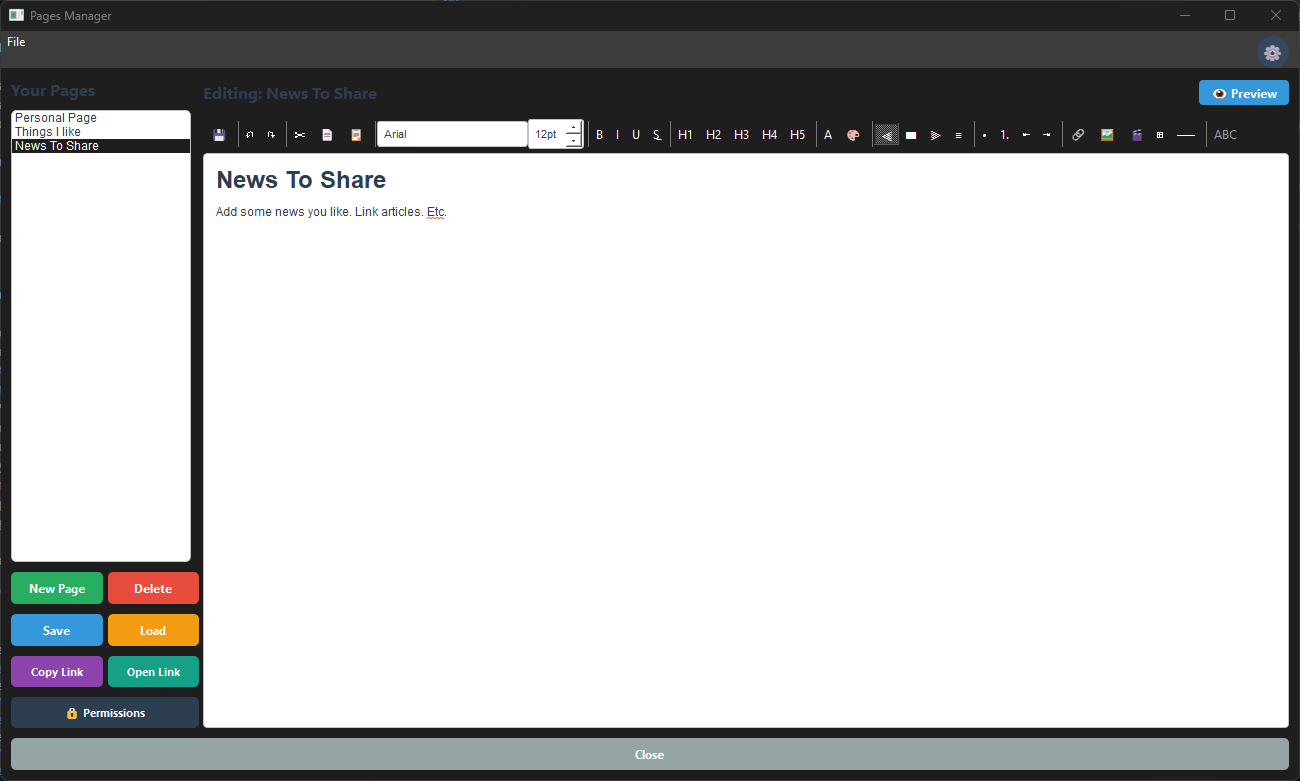
Click the Pages Manager tile on the main window.
Creating a Page
- Click New Page (or File > New Page).
- Give your page a title in the Title field.
- Write your content in the editor below. The editor supports:
- Custom Fonts and Size, Text color and background color
- Text aligning, left center or right aligned
- Bold, italic, underline, strikethrough
- Headings and paragraph styles
- Numbered and bulleted lists
- Hyperlinks (including links to other PangeaNet pages)
- Embedded images and video
- Spell checking with red-underline suggestions (right-click a word for correction options)
Saving a Page
- Press Ctrl+S to save at any time.
- Pages with unsaved changes show an indicator in the title bar.
- Pages auto-save once a minute as you type and five seconds after you stop typing.
Finding Text
Press Ctrl+F to open a search bar within the page editor and jump to matching text.
Organizing Pages
All your pages are listed in the left panel of the Pages Window. Click any page in the list to open it. You can adjust page permissions from the right-click menu.
Importing & Exporting Pages
Use File > Export and File > Import to save pages to or load pages from files on your computer. This is useful for backing up your work or migrating pages from an older account.
Pages Are Per-User
Each logged-in account has its own separate set of pages. Switching users shows only that user’s pages.
4. Communities — Groups & Collaboration
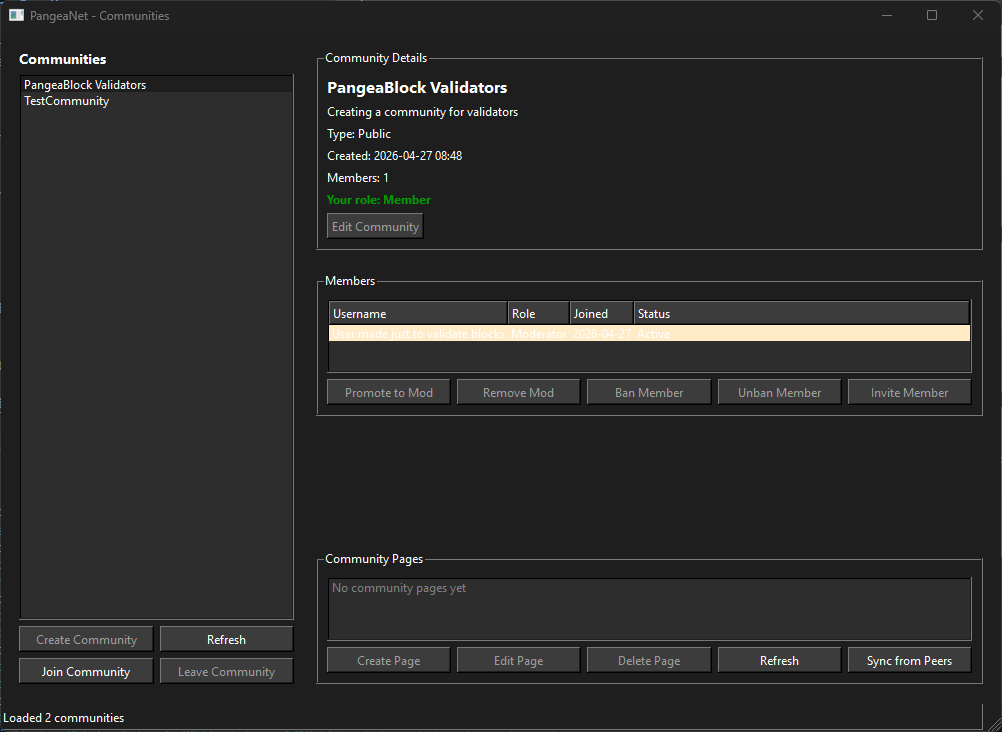
Communities are groups organized around shared interests, projects, or topics. Any user can create one; members can share pages within it according to roles and permissions.
Opening Communities
Communities are accessible through the Communities section inside the Pages window, or via a dedicated Communities tile if it appears in your layout.
Creating a Community
Creating a community is reserved for PangeaNet Admins for the time being, we may open this up eventually but for now we don’t have enough traffic to warrant community creation by non Admins.
Joining a Community
Public communities appear in the community list. Click Join to become a member. For private communities, you’ll need an invitation from a moderator or the creator.
Community Roles
| Role | What They Can Do |
|---|---|
| Creator | Full control — settings, members, pages, deletion |
| Moderator | Manage members, create/edit community pages, moderate content |
| Verified Member | Read and contribute to community pages |
| Public User | View public content only |
Community Pages
Communities have their own set of shared pages. Moderators and the creator can add, edit, and delete community pages. Members can view and (with permission) contribute.
Community page access follows the community’s permissions. People without access cannot download restricted community pages. Community page syncing is opt-in: use the Auto-sync checkbox in the community page window to choose whether pages sync automatically, or use Sync from Peers when you want to request a sync manually.

When membership ends or a member is kicked or banned, that member’s cached pages for the community are removed. Cached pages are also purged from non-members’ devices if the community changes from public to non-public. Membership and moderator-role changes sync to connected peers without requiring an app restart. A configured welcome message is shown when someone joins or is approved.
Leaving a Community
Open the community details and click Leave. Your membership is removed and the action is recorded.
Editing or Archiving a Community
Creators can edit the community name, description, and settings at any time. Communities can also be Archived (hidden from active lists but preserved) or Deleted (removed permanently).
5. Governance — Proposals & Voting
The Votes workspace lets you review proposals, cast ballots, manage representatives, and inspect voting history and rules for scopes you are eligible to participate in.

Proposals and voting
Global rules proposals can be created by PangeaNet Admins; community rules proposals can be created by moderators of that community. A proposal shows the previous and proposed rules, the author’s rationale, the voting duration, and the passing threshold.
In Release builds, proposals run for 1–31 days and use a 1–100% passing threshold. The threshold is the percentage of weighted votes cast that are Yay votes. Not voting is an abstention; there is no separate quorum in this version.
Open a proposal to review its details, then choose Yay or Nay and confirm your ballot in the final confirmation dialog. Recorded ballots cannot be edited.

- A direct ballot without a statement is private from public observers.
- Adding a statement makes your identity, choice, and statement public.
- Representatives cast public votes and must provide reasoning. Their vote can include eligible delegated voting weight.
Private ballots are not fully anonymous: the proposal author holds the key needed to decrypt private ballots and delegated proofs when finalizing the result. The author is therefore a trust and availability dependency.

Representatives and delegation
Use the separate representative manager to choose a representative for a voting scope or review people represented by you. You may change your selection once every 24 hours. Representatives can choose another representative, so eligible voting weight can pass through multiple representatives. Cycles are rejected, and the same delegated vote cannot be counted twice on a proposal.

Results and rules history
The Votes workspace includes voting history and current rules for your eligible scopes. Finalized proposals record their outcome and preserve the adopted rules revision and its history.

Validation note: Governance has automated test coverage, but live multi-device validation—including proposal propagation, delegation changes, reconnect/catch-up, and author-offline behavior—is still pending. Treat this as an alpha feature. It has been tested on a smaller scale but not at a large scale.
6. Peers — Your Network
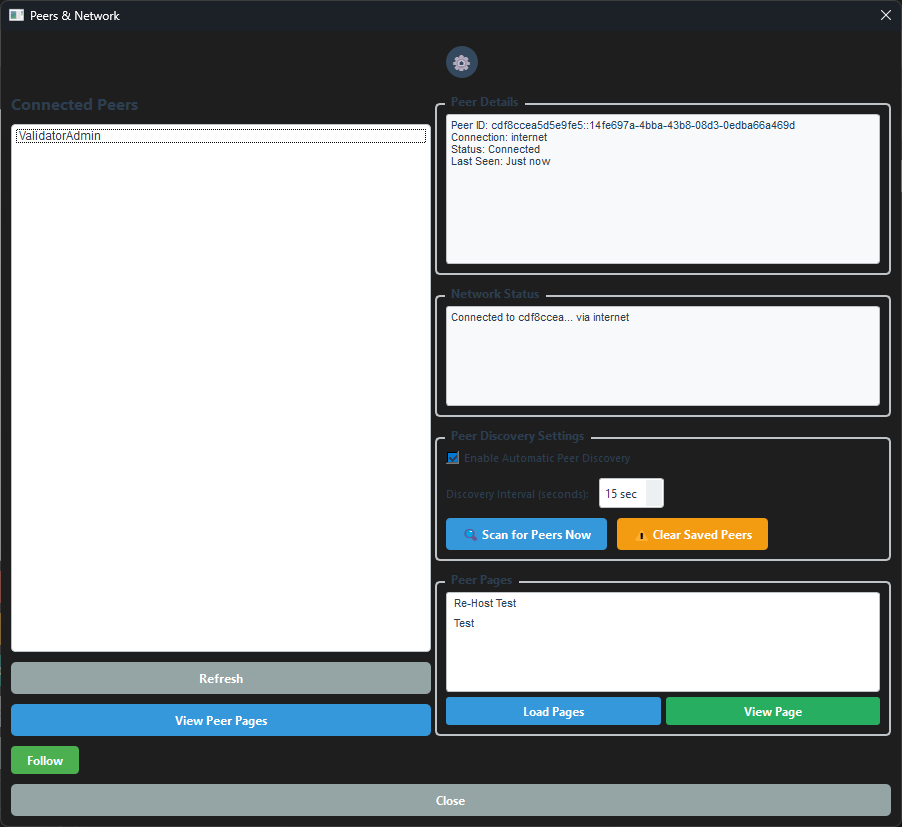
The Peers window shows everyone currently connected to you on the PangeaNet network.
Viewing Connected Peers
Click the Peers tile. You’ll see a list of connected users, their display names, and their connection status.
Viewing a Peer’s Pages
Click on a peer in the list to see their shared pages. You can open and read any page they make available, and request content directly from their device.
How You Connect to Peers
PangeaNet handles connections automatically:
- Same local network (home/office Wi-Fi): Peers on the same network discover each other in seconds without any setup.
- Different networks (internet): PangeaNet registers with a discovery server to help you find peers across the internet. Connection is usually automatic.
- Peer-to-peer mesh: The more peers you connect to, the more your device participates in the mesh and learns about others.
You don’t need to configure anything. Just open the app and peers will appear as they connect.
Note: Direct connections depend on your network setup. If you’re behind a restrictive corporate firewall or certain mobile networks, connection may be less reliable. PangeaNet can use relay-assisted connections when direct connectivity is unavailable, though NAT traversal can still be inconsistent on some networks.
7. Following & Favorites
Following a Peer
In the Peers window, click Follow next to any user. Following records that connection on the blockchain, so your social graph travels with you across devices.
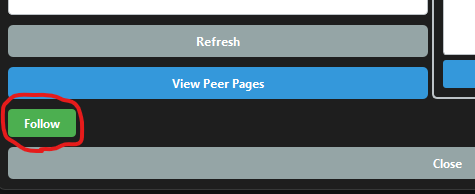
To unfollow, click Unfollow on the same user.
Favoriting a Page
When viewing a peer’s page, click the Favorite button (star icon). This:
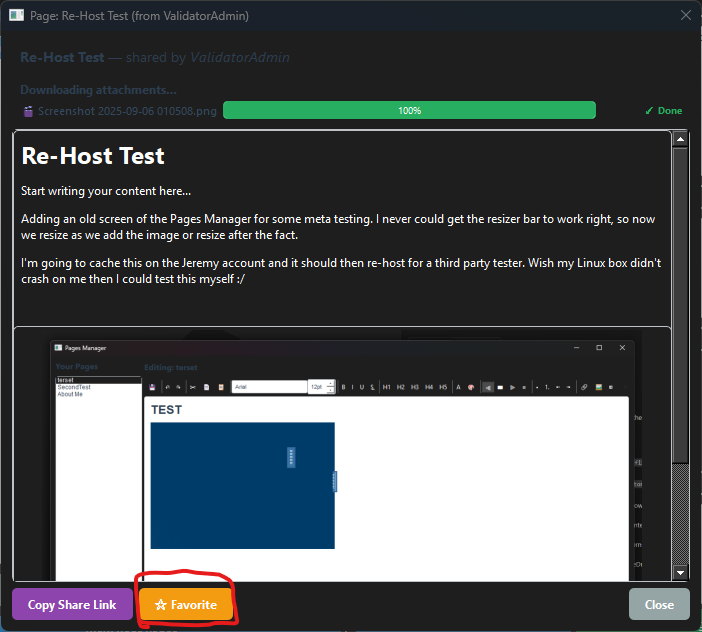
- Bookmarks the page for quick access.
- Downloads a local copy of the page content.
- Makes your device a re-hosting point for that page — if the original author is offline, other peers can still fetch the page from you.
To unfavorite, click the star again to remove it.
Viewing Your Follows and Favorites
Your follows and favorites are accessible from the Peers and Pages windows respectively. They persist across sessions and devices because they’re stored on the blockchain.
8. Sharing Pages
Getting a Share Link
In the Pages window, open any page you’ve authored. Click Copy Link (or the share button). This copies a short PN-PAGE code to your clipboard — PN-PAGE:*A hashed version of*username/page-title/pageId.
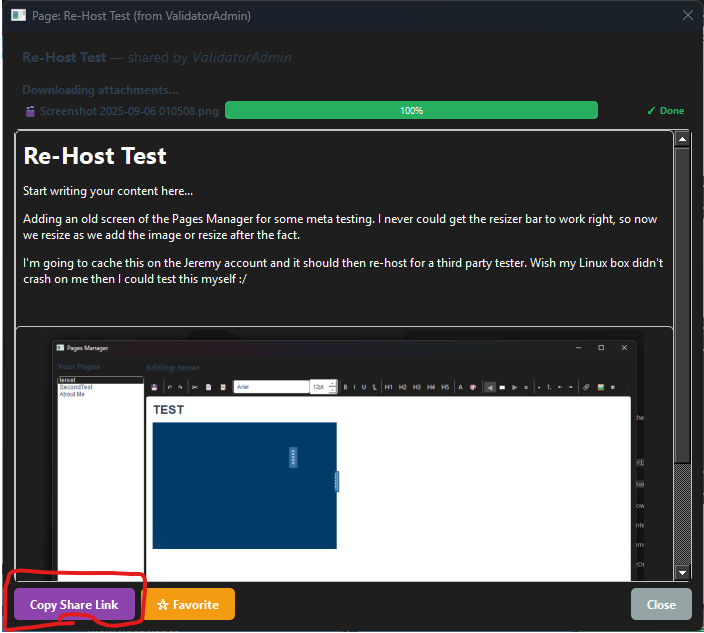
Share this code with anyone on PangeaNet.
Opening a Shared Link
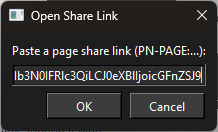
- Click Open Link (or File > Open Link) in the Pages window.
- Paste the PN-PAGE code.
- PangeaNet requests the page content directly from the author (if they’re online) or from any peer who has cached it.
Links in Page Content
You can paste a PN-PAGE link directly into a page’s rich-text editor. It becomes a clickable link — readers can click it to open that page without leaving the editor.
Images and Video in Shared Pages
When you share a page that contains images or video, the files are transferred alongside the page content using PangeaNet’s chunked file transfer system. Viewers see a placeholder while the files download, which automatically swaps in the real content once the transfer completes.

9. User Settings
Click the Settings tile to open your settings.
Clicking a feature tile brings its already-open window to the front.
Account
- Display Name: The friendly name shown to other users. You can update it here.
Device Settings
These settings apply to this machine only:
- Auto-discovery: Controls how often your app checks for new peers.
- Shared files directory: Where PangeaNet looks for files you want to make available.
- Cache limit: How much disk space the content re-hosting cache can use (default: 100 MB).
Note: The Settings window is being improved in an upcoming update. A few legacy options visible now are being replaced with a cleaner layout.
Workspace Layouts
PangeaNet remembers the arrangement of your windows. You can:
- Save the current window layout by name.
- Load a saved layout to restore a previous arrangement.
- Manage layouts from the system tray icon’s right-click menu.
A “Default” layout is created automatically on first run to preserve your window positions.
10. Updates
PangeaNet distributes updates through the peer network. The client can detect an update, download it, and restart to apply it without requiring you to click through each step.
How It Works
When a new version is released, peers who already have it announce the update to their connections. Your app downloads the update in the background.
Update Indicators
- “Downloading X%”: The update is transferring in the background.
- “Ready to Install”: Download complete — click to apply.
Update Status
The update controls report download progress and when an update is ready to apply. The app may close, apply the update, and reopen automatically.
Sharing Updates
You can help other users update faster by enabling Share Updates in the update control area. This lets your device serve update files to peers who haven’t received them yet.
11. Tips & Troubleshooting
“I can’t see any peers”
- Give it 30–60 seconds. Discovery takes a moment, especially over the internet.
- Make sure you’re logged in — discovery only works with an active session.
- If you’re on a corporate or heavily restricted network, some connection modes may not work. Try a different network if possible.
“A peer’s page isn’t loading”
- The peer may be offline. If you or someone else has favorited the page, a cached copy may be available.
- Try clicking Sync from Peers in the community page list if it’s a community page.
Debug Console
If you’re helping report an issue, click the debug toggle button in the main window header. This opens the Debug Console panel, which shows a live log of what the application is doing. You can share a log file from logs/ in the application folder.
For ease of use you can also check the share with the support team option. Which will allow system Admins to download your logs as needed, soon I’ll have direct messaging in place and we can initiate a more live support chat system for any online Admin or other support users.
What’s Coming Next
PangeaNet is actively developed. Features in progress include:
- Encrypted Direct Messaging: Secure messaging for users to talk to each other directly.
- Streaming improvements: The current basic streaming is being reworked for better performance and quality.
Check the release notes for details on what’s been added in each version.
Thanks for being an early tester of PangeaNet. Your feedback drives what gets built next.